Controller Updates
Automated Translation
This documentation has been automatically translated from Polish. While we strive for accuracy, some nuances may be lost in translation. If you notice any errors or unclear passages, please refer to the Polish version or contact the author.
Note: This manual uses Polish screenshots, but the Firmware itself (Admin panel), on-screen messages shown on the LED display, and the Firmware uploader website are all available and translated to English. The firmware will display English messages and have an English GUI.
OTA (Over-the-Air) controller updates allow you to upload a new firmware version to the controller wirelessly, without needing to connect the device to a computer.
When to Update?
New firmware versions may contain bug fixes, optimizations, or new features. It's usually worth updating the device when a new version is available.
On the Diabetes Technology (Polish) Facebook group, I'll post announcements about new versions.
How to Perform an OTA Update?
- Log in to the controller's admin panel
- On your phone, connect to WiFi network
akszon-led-skaut-XXXX - Open a web browser and go to address
192.168.4.1 - Log in (
admin/skaut). If you set a different admin password – use your own password!
- On your phone, connect to WiFi network
-
Go to the
Configuration→Devicetab, "Firmware information" section.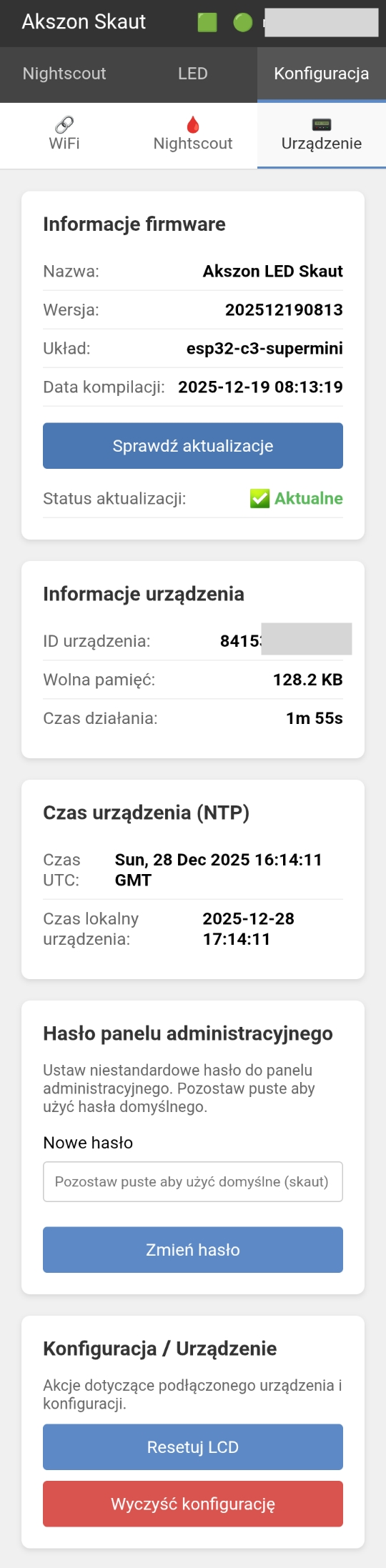
-
Click
Check for updates. The system will automatically check if a newer firmware version is available for your board model. - If an update is available, you'll see information about the new version and an "Update" button.
- Click the "Update" button. The process of downloading and installing the new firmware will begin.
- Don't disconnect the device from power during this process. The display may briefly go dark or show update progress.
-
After completion, the device will restart with the new firmware version. The installed firmware version is always displayed as the second splash screen in the startup sequence, right after the project name:
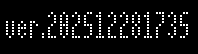
That's it! Your device is up to date!